
Command Palette
Press ⌘K (Mac) or Ctrl+K (Windows/Linux) anywhere in the app — or click the shortcut hint in the toolbar search box — and the command palette opens. Press Esc or click outside to close it.
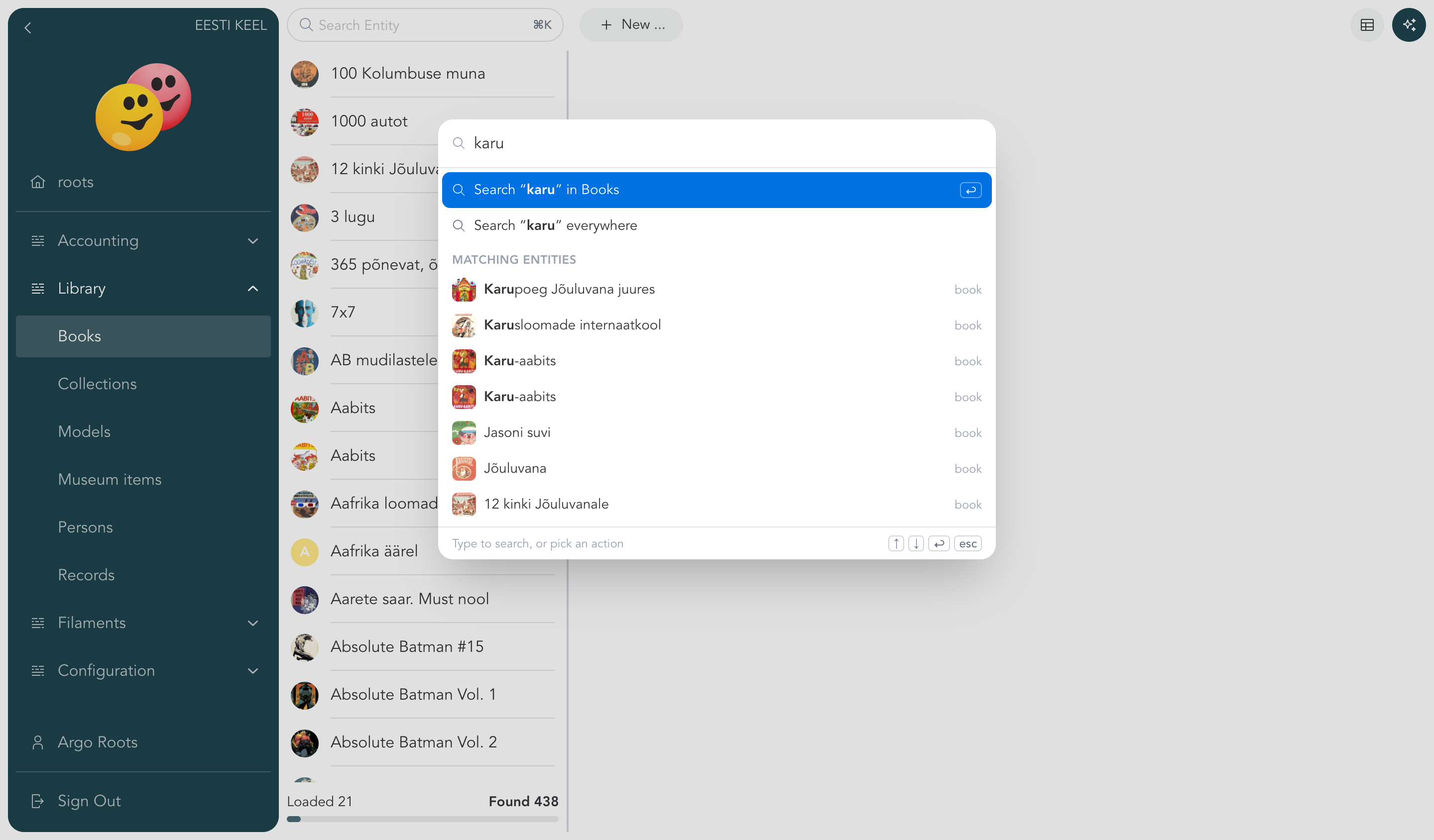
Start typing
Type anything — results appear as you type. Entity matches show up alongside commands, so the same box finds a person, opens a menu list, or runs an action. Press Enter to open the selected row, or search with the text you typed — in the menu list you are in, or everywhere.
Before you type
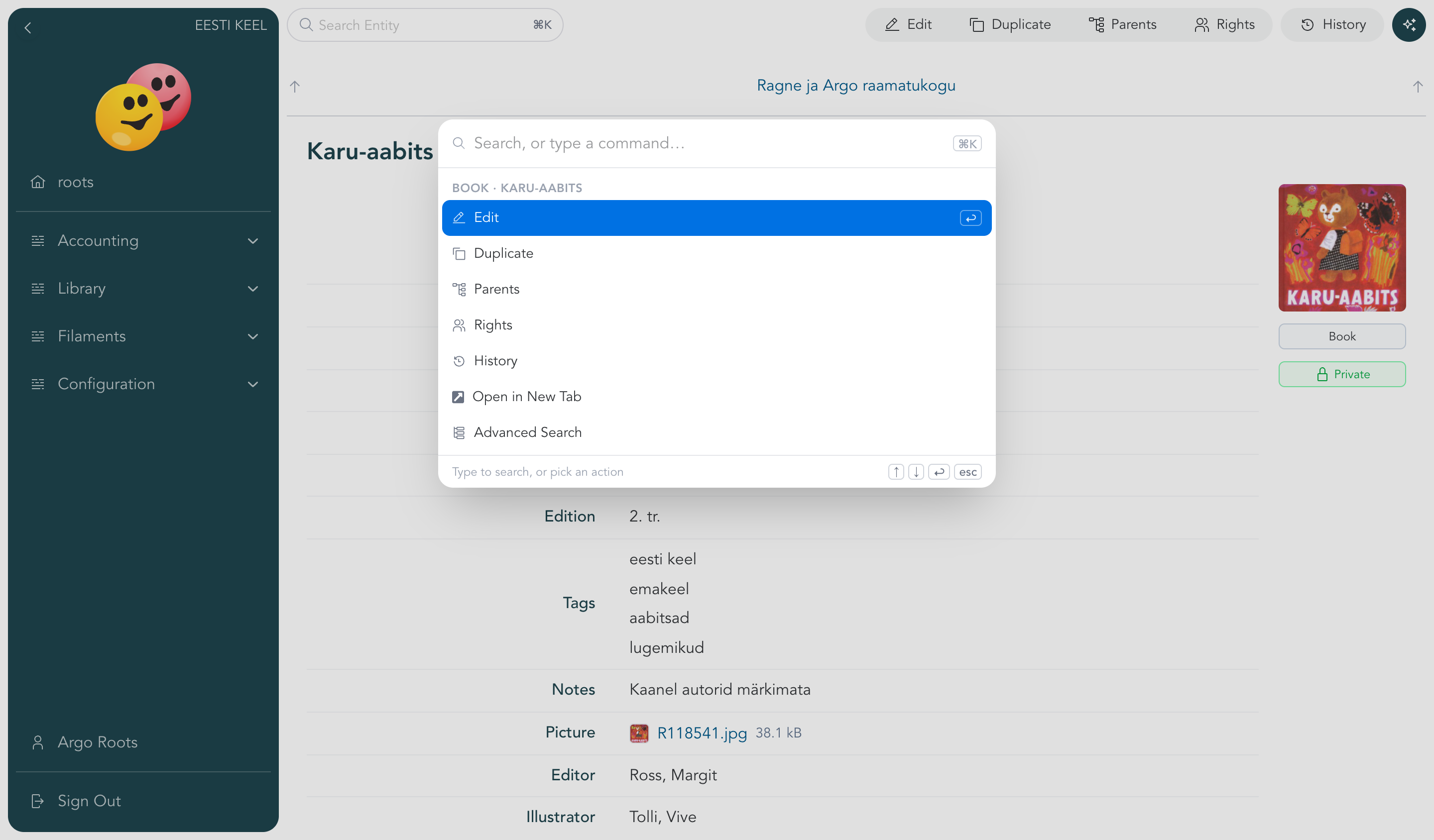
An empty palette is already useful. It shows:
- Actions for the open entity — add a child, edit, duplicate, parents, rights, history, open in a new tab. Only actions your rights allow are listed.
- Create shortcuts — new-entity actions for the menu list you are in.
- Recent — entities you viewed lately, one keystroke away.
Commands
The palette also runs app commands: open Advanced Search or Entu AI, reload the app, switch the language, or sign out. And it navigates — to any menu entry, the dashboard, your own profile, or another database you have access to.
Quick filters
The palette understands a small query grammar. Type an entity type's name and press Tab — it becomes a token, and everything after it applies to that type:
- Filter by property — pick a property, choose a condition, then a value. Conditions are is / is not / contains — or is / before / after for numbers and dates. While building a filter, ⌥ (Alt) cycles the condition — or click the condition on the token.
- Sort by property — add a sort token and flip its direction by clicking it.
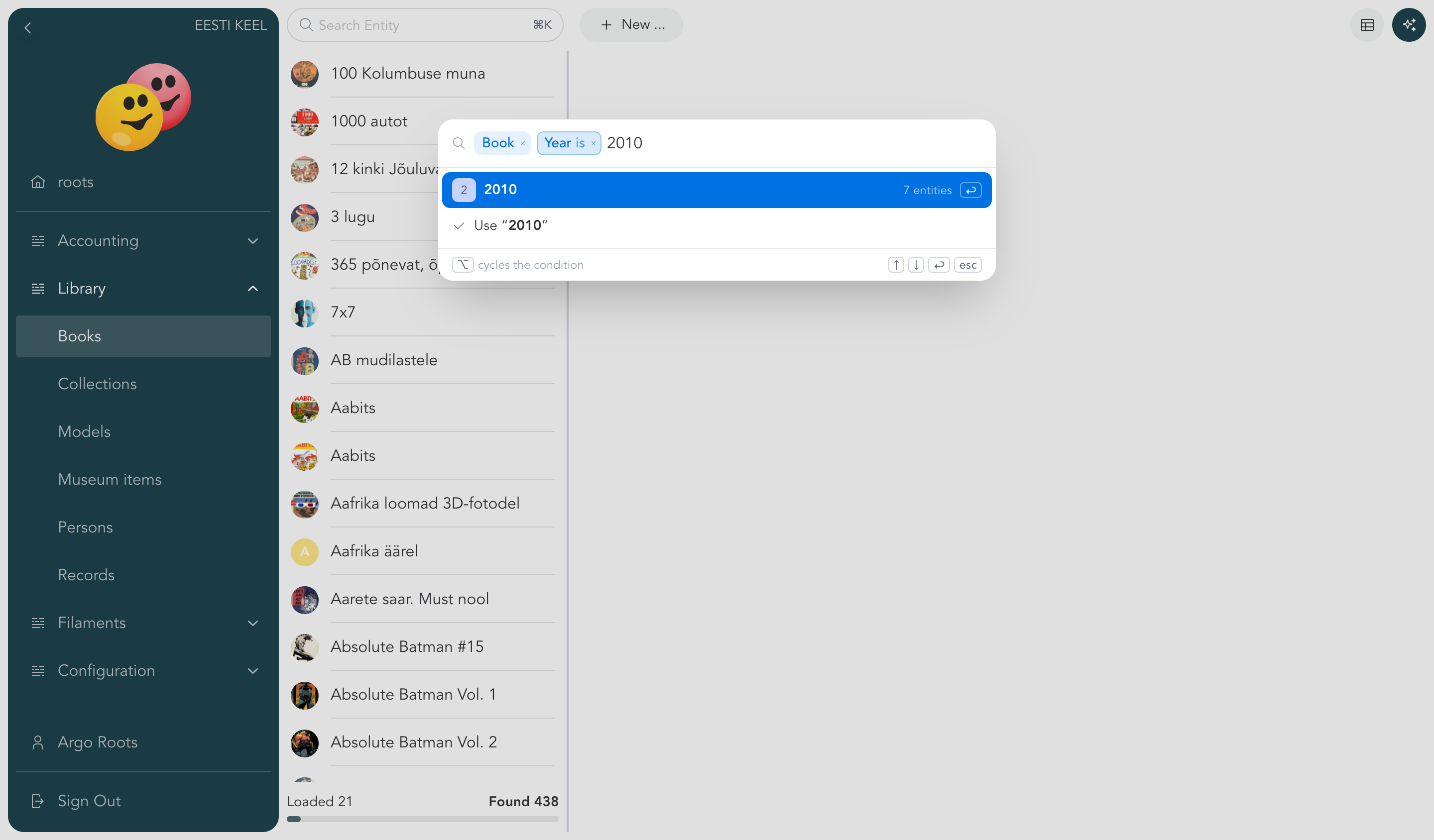
Backspace on an empty input removes the last token, so you can rebuild the query step by step. Matching entities update below as you go — press Enter on one to open it. To open the list view with your filters applied, type a search word and pick Search “…” in ….